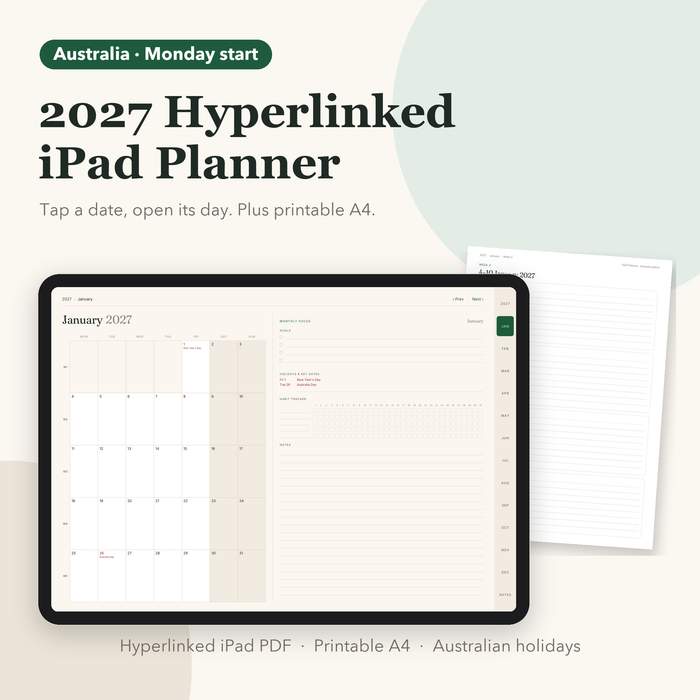
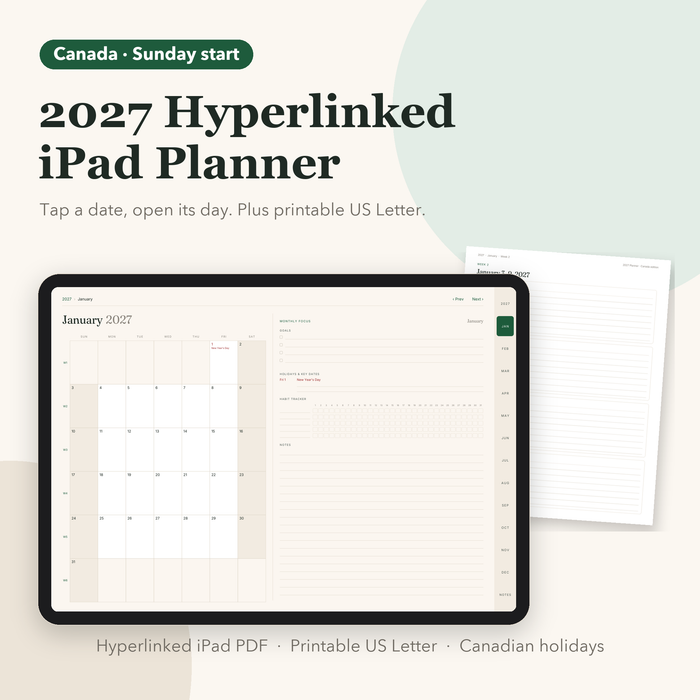
A hyperlinked planner is a PDF with buttons built in: tap a month, a date or a tab and you jump straight there. Here's how to set one up so the links keep working.
1. Import it as a PDF
- GoodNotes: tap +, then Import, and choose the PDF from Files.
- Notability: tap Import and choose the PDF.
- Android and Windows: open the PDF in Xodo, Samsung Notes, Noteshelf, Flexcil or Drawboard.
Always import the file as a PDF, not as images or photos. Converting pages to images removes the links.
2. Learn the three ways to move
- Side tabs open a month (or the notes pages).
- Calendar dates open that day's page; week numbers open the week.
- The links at the top take you back up to the week, month or year, with Prev and Next buttons.
3. If a link doesn't respond
Most apps only follow links when you're not writing. Switch to read-only mode, or the hand or pointer tool, and tap again. In GoodNotes you can also turn on Read-only from the top bar.
4. Add pages without breaking links
Adding a blank page after a day is fine; the links still point to the right pages. Avoid deleting planner pages, because a link that points to a deleted page stops working.
5. Keep a backup
Keep the original PDF in your Files app or email. If something goes wrong, you can import a fresh copy and carry on.
FAQs
Why don't the links work in my planner?
Make sure you imported it as a PDF (not images), then switch to read-only or the hand tool and tap the link.
Can I use a digital planner on Android?
Yes. Xodo, Samsung Notes, Noteshelf and Flexcil all support PDF links.
Do I need an Apple Pencil?
No, but a stylus makes handwriting much easier. You can also type in most note apps.
Plan it in minutes
Over 11,000 links, 365 day pages and printable pages included, in UK, US, Canada and Australia editions.
See the 2027 hyperlinked iPad planner →